RNG RollAttacks Controls Guide
PC, mobile, and controller habits for rolling attacks and winning PvP fights.
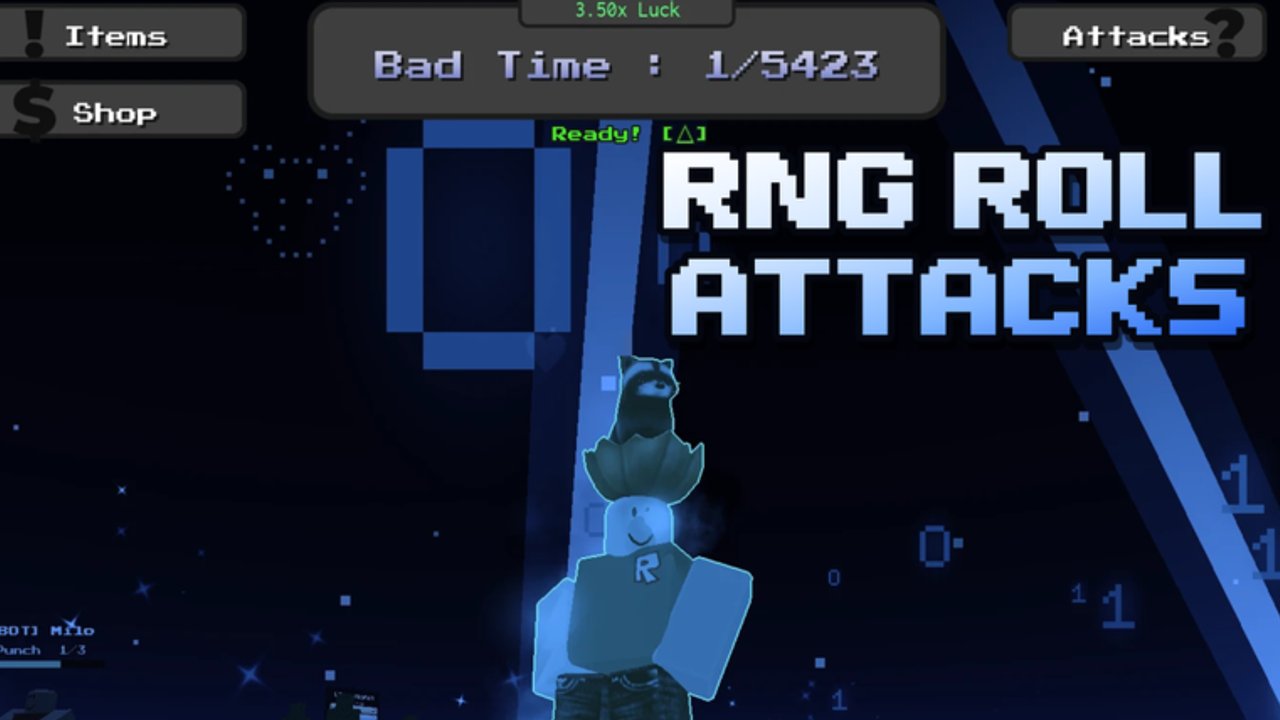
Clean inputs win more fights than rare animations in RNG RollAttacks. This controls guide covers how to think about movement, camera, rolling, and ability buttons on PC, mobile, and controller inside a Roblox battlegrounds fighter with 40+ rolled attacks and servers up to 23 players. Exact key labels can vary with your Roblox device settings and any in-game rebinds Giggle Group Media ships, so treat the tables below as a battlegrounds-style baseline and confirm against your live UI.
Use this page with Getting Started on day one, then apply the same binds under pressure with Combat Basics. Better control also makes quest clears, luck grinding, and Wither Storm attempts less frustrating.
Universal control goals
No matter the device, optimize for four actions you will spam for hours:
- Move and strafe without losing camera awareness.
- Roll only when you mean to—misrolled kits mid-combo lose lives.
- Fire the primary attack / M1 string consistently.
- Trigger the kit ability (the rolled power) on purpose, not as a panic mash.
Secondary goals: open menus (shop, quests, codes entry if present), emote/flex without locking yourself in place at the wrong time, and jump/shift-lock habits that match your aim style.
PC controls (keyboard and mouse)
Roblox PC fighters usually map like this. Verify in Esc → settings if anything differs after a patch.
| Action | Common default | Fight note |
|---|---|---|
| Move | WASD | Strafe while keeping the enemy centered |
| Jump | Space | Short hops for whiff punishment, not panic spam |
| Camera | Mouse | Lower sensitivity until tracking feels sticky |
| Shift lock / mouse lock | Shift (if enabled) | Strongly recommended for consistent M1 tracking |
| Primary attack | Left click | Your punch / M1 string for almost every kit |
| Ability / skill | E, Q, R, or on-screen bind | Learn which key your roll uses before fighting |
| Roll / re-roll attack | Dedicated key or UI button | Never bind it next to jump if you misclick often |
| Sprint / special move | Left Ctrl or kit-specific | Depends on the rolled attack |
| Menu / shop / quests | UI buttons or Esc | Bank money into luck between fights |
PC setup tips
- Enable shift lock if you struggle to track strafing opponents on a full server.
- Bind roll away from combat keys so a single missclick does not delete a god roll during Wither Storm pressure.
- Use a slightly lower mouse sensitivity than pure Roblox obbies; battlegrounds tracking rewards smooth micro-adjustments.
- Keep the quest and shop UI hotkeys memorized so luck purchases happen in five seconds, not fifty.
- If flashing VFX distract you mid-aim, lower graphics quality in Roblox settings without turning the game into a blur.
Mobile controls (touch)
Mobile players compete on the same 23-player servers, so HUD layout matters as much as mechanics.
Thumb layout principles
- Place the joystick where your left thumb rests naturally; avoid covering the roll button with the same thumb arc.
- Keep jump and attack on opposite sides of the right thumb zone so you can hop and M1 together.
- Put the ability button in a high-contrast spot you can hit during chaos without looking down for a full second.
- Move the roll / re-roll control to a safer corner. Accidental re-rolls are the number-one mobile tragedy in RNG fighters.
Mobile fight habits
- Prefer semi-locked camera modes when available so your thumbs handle actions while the camera stays usable.
- Take more outer-ring fights until your HUD muscle memory is solid—see spacing notes in Combat Basics.
- Zoom out slightly if the default camera clips during big ability VFX (time-stop style flashes included).
- Pause between lives to tap shop and quest UIs; fat-finger menus mid-chase cause avoidable deaths.
Mobile accessibility
- Increase button size in Roblox touch settings if you miss abilities.
- Reduce particle density when possible; the game warns about flashing images for a reason.
- Consider a clip-on mobile controller if your hands cramp during long luck grind sessions.
Controller controls (gamepad)
Many Roblox players use Xbox-style pads on PC or console-flavored sessions.
| Action | Typical gamepad idea | Fight note |
|---|---|---|
| Move | Left stick | Soft circular strafes beat robotic left-right |
| Camera | Right stick | Slow the stick sens for tracking |
| Jump | A / Cross | Tap, do not hold into every whiff |
| Primary attack | RT / R2 or X / Square | Find which feels like a reliable M1 |
| Ability | LT / L2, Y / Triangle, or bumper | Confirm per kit |
| Roll | Back / Select, or a bumper you will not bump | Safety first |
| Lock / target assist | Left stick click or in-game toggle | Use if it stabilizes duels |
| UI | View / touchpad / d-pad | Practice opening shop without dropping the pad |
Controller tips
- Deadzones: tighten enough for precise aim, loosen enough to avoid stick drift walking you into AoEs.
- Map roll to a button you must consciously press—bumper misclicks mid-combo are brutal.
- Use vibration cues if they help you feel hit confirm windows; turn them off if they distract.
- On long sessions chasing kill badges (100 toward 25,000), stretch your hands; controller claw grip causes misinputs late.
Shared settings that help every device
Camera and visibility
- Keep enemies centered at mid ring whenever your kit allows.
- Raise field of view if Roblox and the experience allow it—crowded servers punish tunnel vision.
- Turn down bloom/flash intensity when photosensitive; badge hunting is not worth discomfort.
Audio cues
Ability startups and roll stingers often audio-telegraph before the VFX peak. Wired headphones help you react without staring at every particle.
UI literacy
You should open these without thinking:
- Shop → luck upgrades (How to Get Luck)
- Quest board (How to Complete Quests)
- Codes entry when Codes lists something live
- Any trait / badge related panels linked conceptually from Players
Device-specific training drills (10 minutes)
- Movement only: strafe a circle around a quiet part of the map while keeping camera on a fixed landmark.
- M1 consistency: throw ten clean primary strings without accidental jumps.
- Ability discipline: fire your rolled ability only on a counted “three-two-one,” breaking panic mash habits.
- Safe re-roll: walk to outer ring, roll once, re-center camera, throw one poke—simulate the mid-fight re-roll rule from combat basics.
- UI sprint: open shop, check a quest, close menus, return to neutral in under fifteen seconds.
Run the drill on the device you actually main. PC skills do not fully transfer to mobile thumbs.
Controls mistakes that cost badges
- Accidental re-rolls deleting a high-tier kit before a Storm Breaker pull.
- Jump spam that extends recovery and gets you punished.
- Camera yanking to the sky during multi-player piles.
- Menu camping in the open while 23 players rotate your corpse.
- Ignoring Updates when a patch rebinds or relocates a UI button.
Putting controls to work in the rest of the wiki
Inputs are the floor; strategy is the house. After your binds feel boring—in a good way—return to the Guides Hub and push luck, quests, and combat decision-making. Use the Tier List to decide which kits deserve your newly reliable execution, and keep Scripts optional and risky rather than a substitute for clean hands.
Master the device you hold. RNG RollAttacks will still roll randomly; your buttons do not have to.
Related pages
Frequently Asked Questions
Quick answers to the most common questions.
What are the default RNG RollAttacks controls on PC?
Expect standard Roblox fighter patterns: WASD move, mouse camera, left click primary attack, and a skill key for the rolled ability. Confirm roll and menu binds in your live settings because patches and Roblox device options can differ.
How do I stop accidental re-rolls on mobile?
Move the roll button to a safer HUD corner, enlarge combat buttons you need, and only re-roll from outer-ring safety. Accidental re-rolls are usually a layout problem, not an RNG problem.
Should I play RNG RollAttacks with shift lock?
Most PC players should enable shift lock or an equivalent mouse lock for consistent tracking, especially on busy 23-player servers.
Can I use a controller?
Yes. Prefer clear separation between attack, ability, and roll buttons, tune stick sensitivity, and practice UI access so shop luck buys stay fast between fights.
Do controls change for the Wither Storm fight?
The binds stay the same; the tolerance for misclicks drops. Bind roll safely and practice ability timing before Storm Breaker attempts.